Anatomy · Planning · Consultation

Prepare the patient consultation before the visit

Give patients a clinic-specific place to request an appointment, send their information and stay in contact. Alfacenturi brings those submissions into the clinician’s consultation workspace.

Explore the clinician app

Share your clinic link and QR code

Inside the appYour clinic. Your patient entry point.

After signing in with a clinician account, configure your consultation name, location and time zone. Enable new appointment requests and save the settings to publish your patient link. The same workspace provides a QR code that you can download for printing or sharing.

Use the link in a WhatsApp conversation, send it after an Instagram enquiry or place the QR in your clinic. Both open the patient entry point for your consultation. Sharing the link does not send patient forms or photographs through those social platforms.

Receive appointment requests with useful context

Inside the appFrom a draft to a submitted request

Patients enter through their clinic’s link, create their patient account and propose a preferred appointment date and time. The request includes a reason for the consultation. The time is a preference for the clinic to review, rather than an automatically confirmed booking.

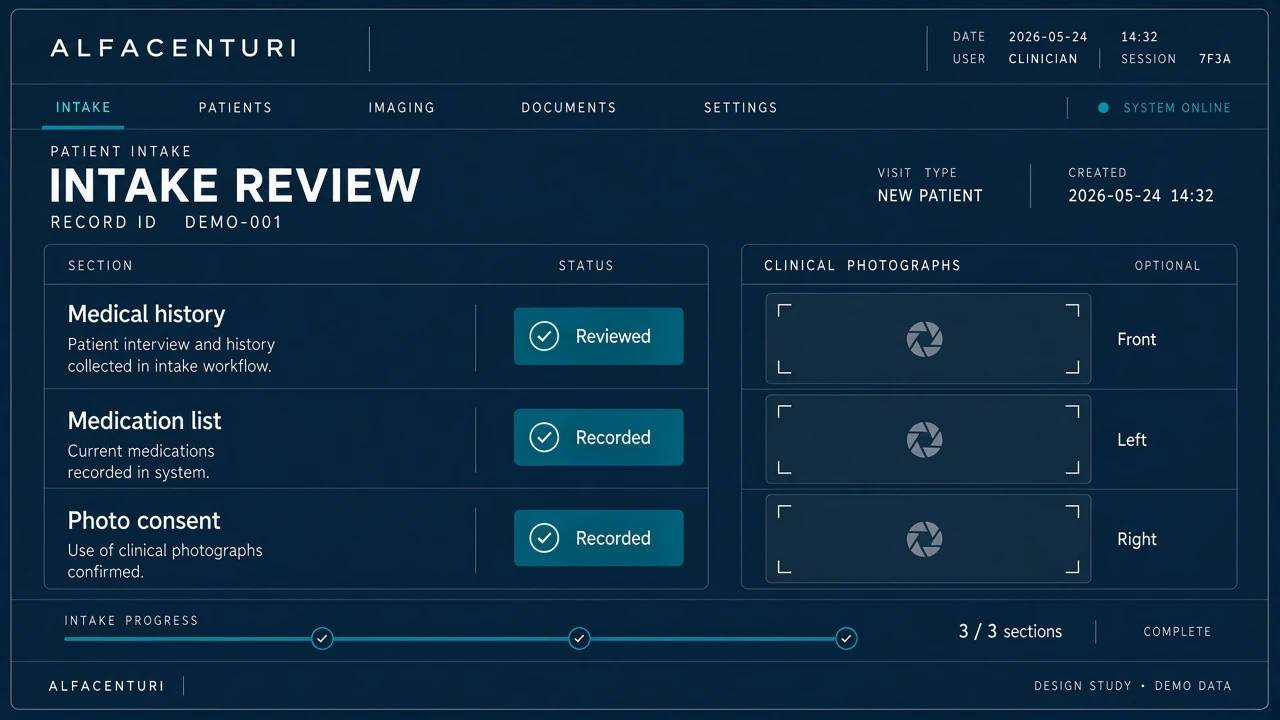
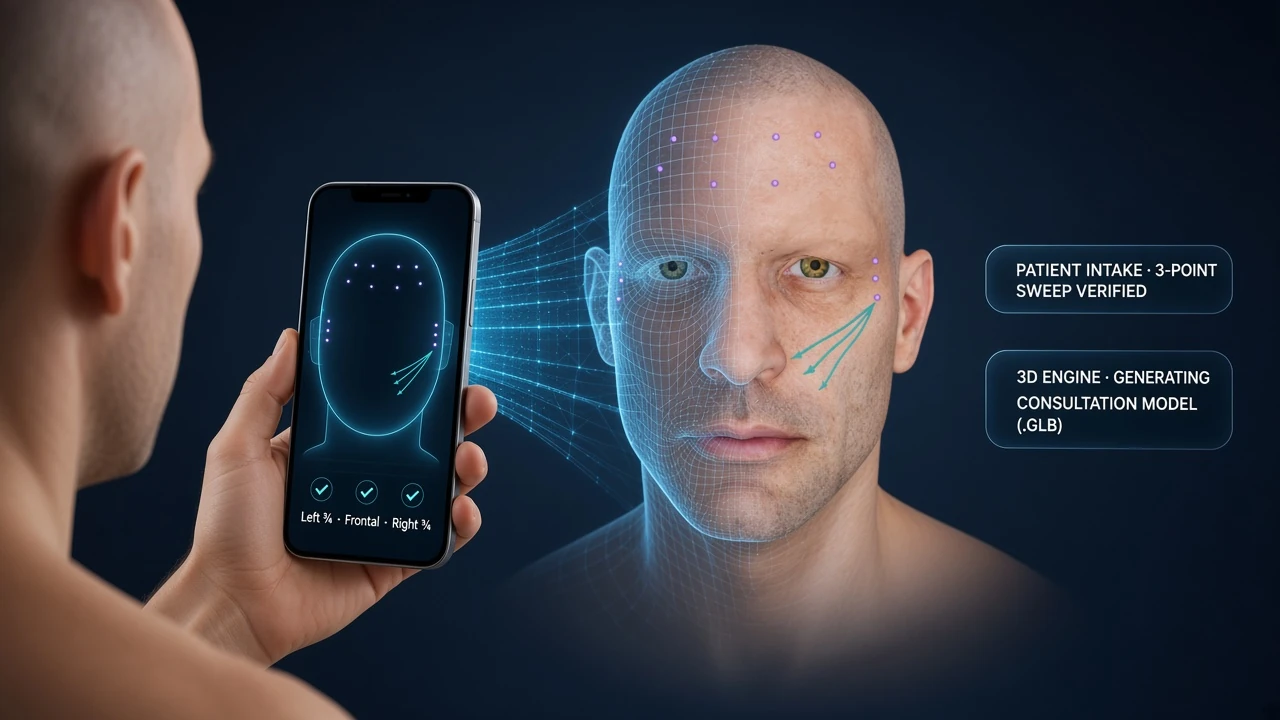
The patient then completes the intake form and can add optional before photographs. They review their information and authorize its submission to the clinic. A saved draft remains separate from a submitted request, and subsequent form updates preserve earlier submitted versions for review.

Review forms, photographs and conversations together

Inside the appThe visit context, in one place

The clinician workspace separates pending requests, confirmed appointments, conversations and history. Open a request to review its submitted information and photographs, check for updated forms and respond in the appointment conversation. The patient can return to the portal to see the appointment status and continue the exchange.

Forms and photos are shared within the patient’s clinic account flow. The authorization to submit that information is separate from treatment consent. The patient portal and consultation screens currently use Spanish, while the main anatomy interface offers English and Spanish.

Confirm the appointment and keep notices optional

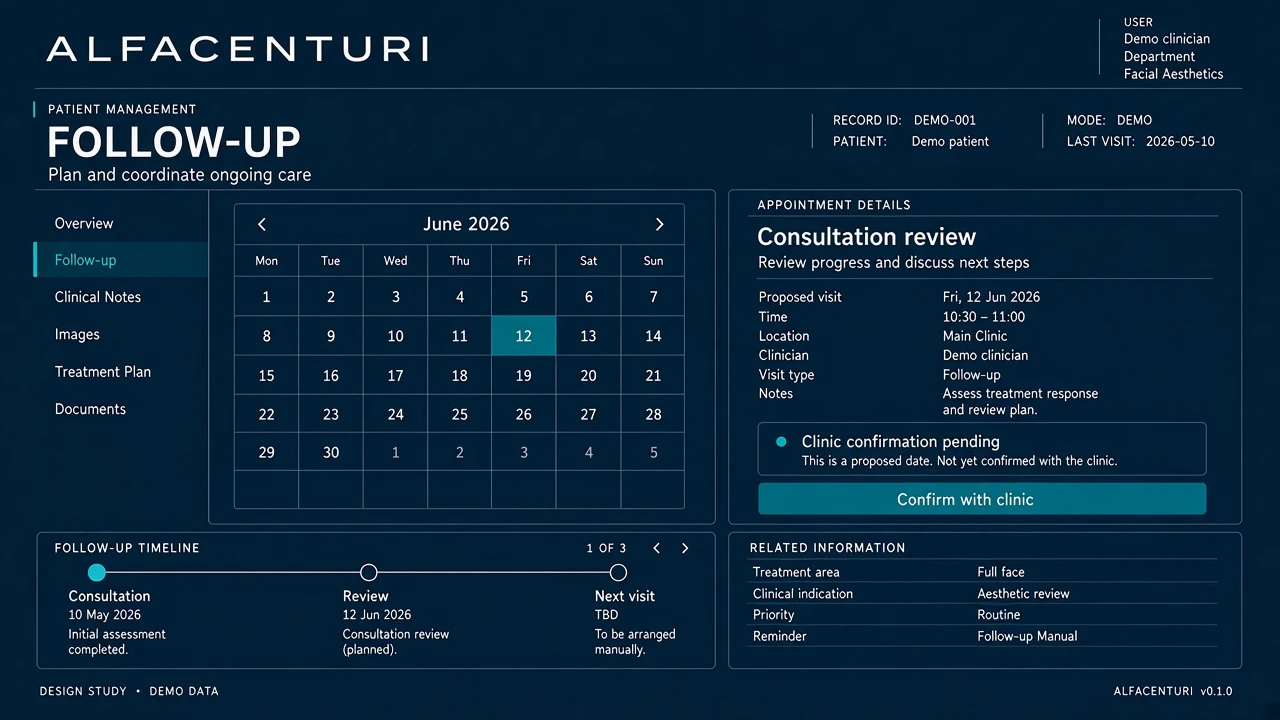
Inside the appA request becomes a confirmed appointment

The clinic confirms the appointment using its configured time zone. Email reminders are scheduled for confirmed appointments when the patient has verified their email address and opted in to notices. Patients can review their notification preference from their portal and continue checking appointment information there.

Patient-to-clinician messages remain available within the appointment conversation. Email notices can alert an opted-in patient to a new clinic message, while the portal holds the conversation itself. This gives the practice a single place to review the context around the visit.

Questions about the software

Does every clinician receive the same patient link?

No. Each published consultation workspace has its own patient URL and matching QR code. The clinic must configure and publish its workspace before receiving new requests through that link.

Is a requested appointment already confirmed?

No. Patients submit a preferred time. The clinic reviews the request and confirms the appointment, which the patient can then see in the portal.

What is required for email reminders?

The appointment must be confirmed, and the patient must verify their email address and choose to receive notices. Appointment details and conversations remain accessible in the patient portal.

Bring the workflow into view

Explore the anatomy viewer and planning tools in your browser.

Open the app